
Raw Data Viewer
Overview
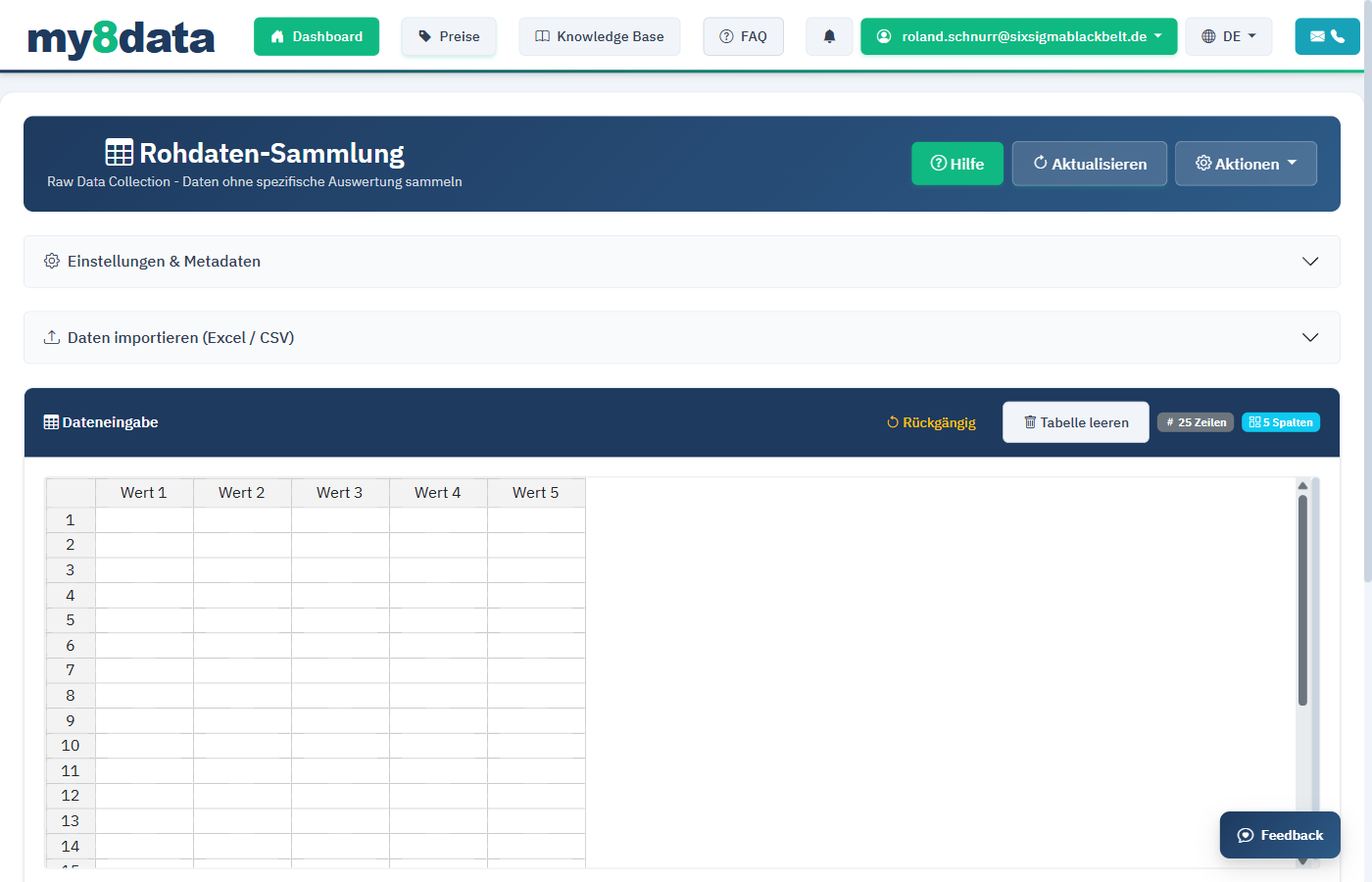
The Raw Data Viewer in my8data allows you to view, check, and analyze measurement data in its unprocessed form. Before transferring measured values into a statistical analysis (MFU, SPC, process capability), you can review the raw data here, check for plausibility, and have basic statistical metrics calculated.
Scope of Functions
| Function | Description |
|---|---|
| Data Display | Tabular presentation of all imported measurement values |
| Sorting | Sort data by any column (ascending/descending) |
| Filtering | Restrict display to specific value ranges or criteria |
| Statistical Metrics | Automatic calculation of mean, standard deviation, min, max, median |
| Outlier Detection | Identification of unusual measurement values |
| Data Export | Export (filtered) data in various formats |
When to Use the Raw Data Viewer?
- Before Analysis: Check your data for completeness and plausibility before starting an MFU, SPC, or process capability analysis
- Data Cleaning: Identify and mark erroneous measurements or outliers
- Data Understanding: Get a first impression of the distribution and characteristics of your data
- Traceability: Document raw data for traceability and audits
Info: The Raw Data Viewer does not modify your original data. All filter and sorting operations only affect the display. The underlying data remains unchanged.
Displayed Statistical Metrics
The viewer automatically calculates the following metrics for each numerical column:
| Metric | Symbol | Description |
|---|---|---|
| Count | n | Total number of measurement values |
| Mean | x̄ | Arithmetic mean of all values |
| Standard Deviation | s | Measure of the spread of values around the mean |
| Minimum | Min | Smallest measurement value |
| Maximum | Max | Largest measurement value |
| Range | R | Difference between maximum and minimum (R = Max - Min) |
| Median | x̃ | Central value; 50% of values lie above it, 50% below |
Tip: Compare mean and median. If these values are close together, this indicates a symmetric distribution. A large deviation indicates a skewed distribution or outliers.
Data Import
Supported Formats
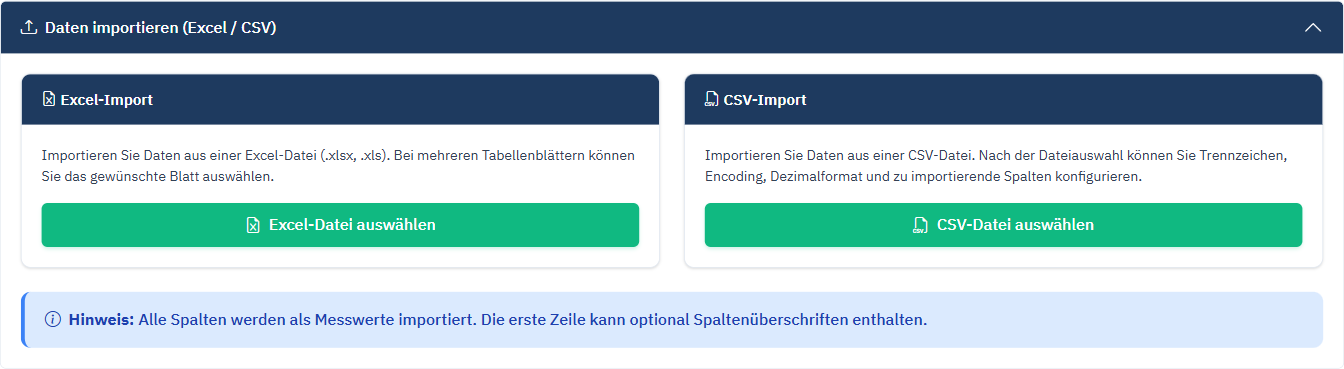
my8data supports importing raw data from various file formats:
| Format | File Extension | Description | Special Features |
|---|---|---|---|
| CSV | .csv | Comma or semicolon-separated text file | Delimiter is automatically detected; UTF-8 and ANSI are supported |
| Excel | .xlsx, .xls | Microsoft Excel workbook | Multiple worksheets are supported; selection of desired sheet is possible |
| Text File | .txt | Tab-separated or formatted text file | Various delimiters configurable |
Import Procedure
Step 1: Select File
Click Select File or drag and drop the file into the upload area. Supported file sizes depend on your plan and server configuration.
Step 2: Check Import Settings
After uploading, my8data displays a preview of the detected data. Verify the following settings:
| Setting | Description | Default Value |
|---|---|---|
| Delimiter | Character that separates columns | Automatic detection |
| Decimal Separator | Comma or period | Automatic detection |
| Header Row | Does the first row contain column headers? | Yes |
| Columns to Import | Selection of relevant data columns | All columns |
| Data Type | Numeric, text, date | Automatic detection |
Warning: Pay special attention to the decimal separator. German-language files often use a comma as the decimal separator (e.g., 10,05), while English-language files use a period (e.g., 10.05). Incorrect settings result in erroneous measurement values.
Step 3: Import Data
After verifying the preview, click Import. The data is loaded into the Raw Data Viewer and statistical metrics are automatically calculated.
Import from Clipboard
As an alternative to file import, you can also paste measurements directly from the clipboard:
- Select and copy the measurement values in your source program (e.g., Excel, measurement software)
- Click Paste from Clipboard in the Raw Data Viewer
- The data is automatically detected and inserted into the table
Tip: If you regularly import data from the same source, create a template with the correct column structure. This allows you to reuse the import settings and saves time on recurring imports.
Import Troubleshooting
| Problem | Possible Cause | Solution |
|---|---|---|
| All values in one column | Incorrect delimiter detected | Set delimiter manually |
| Values recognized as text | Decimal separator incorrect | Adjust decimal separator |
| Empty rows or columns | Source file formatting | Clean up source file or select ranges manually |
| Special characters in column names | Encoding issue (e.g., umlauts) | Save file as UTF-8 |
| Import aborts | File too large or corrupted | Split file into smaller parts |
Info: my8data logs the import process. If issues occur, you will find detailed error messages in the import log, which will help you with diagnosis.