
Common Functions
This chapter describes the functions that work identically or very similarly across all analysis modules in my8data. Once you understand these basics, you can use any module efficiently.
Starting an Analysis
There are several ways to begin a new analysis:
- Via the Dashboard: Click the New Analysis button and select the desired analysis type (e.g., MSA 1, MSA 2, SPC).
- Via the Sidebar: Click directly on the corresponding analysis type in the left navigation.
- Via an Existing Analysis: Open a saved analysis and click Create as Copy to start a new analysis with the same settings.
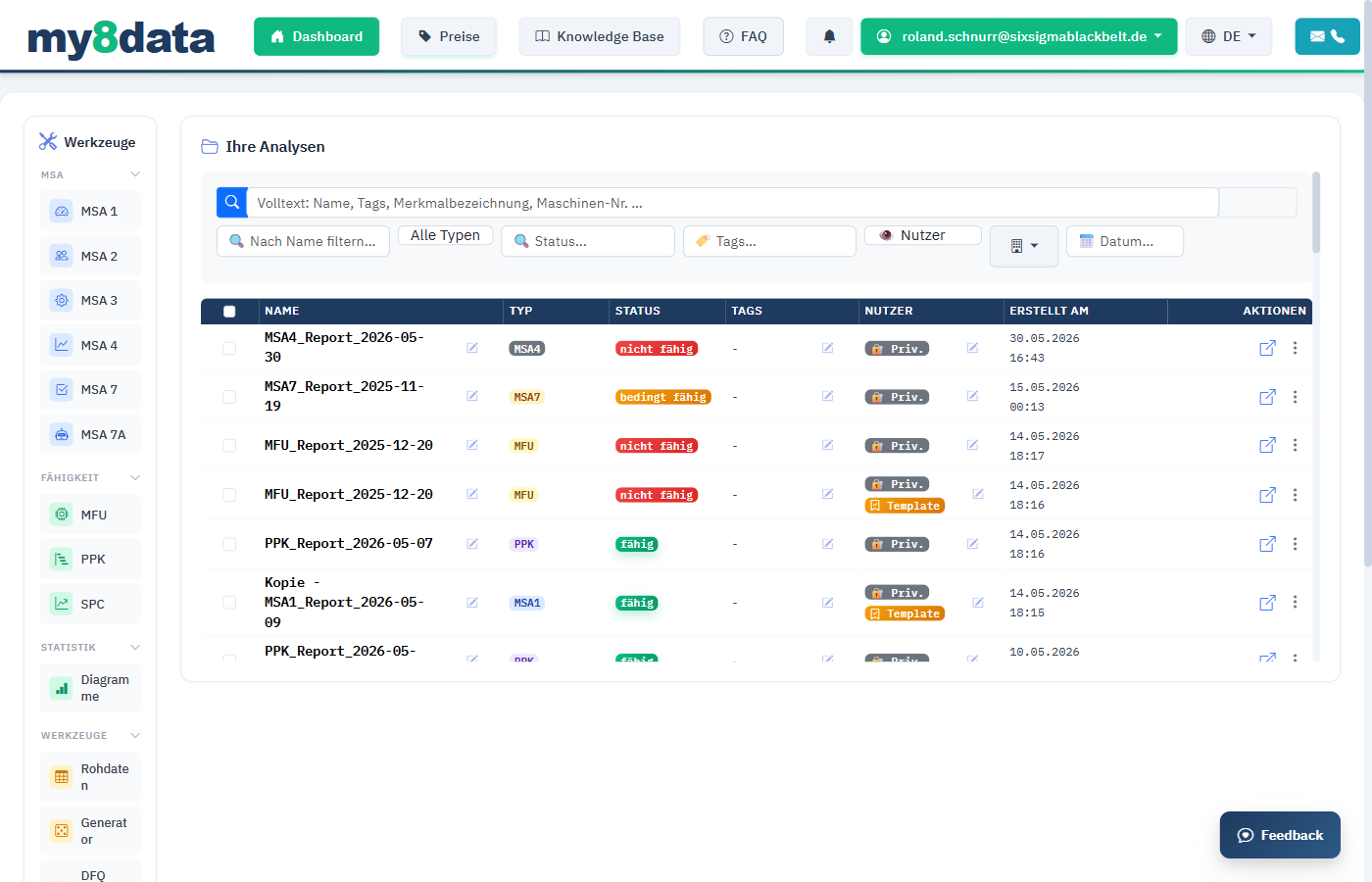
After starting, you will be taken to the input page of the selected module. There you can enter your data, configure settings, and perform the calculation.
Tip: Use the Load Demo Data button to load sample data in any module to learn how it works without having to enter your own data.
Data Entry
Table Input (Spreadsheet)
Data entry in my8data is done through a table-like input field (spreadsheet) that works similar to a spreadsheet application:
- Navigation: Use the arrow keys or Tab key to move between cells.
- Input: Click on a cell and type the value. Confirm with
EnterorTab. - Decimal Separator: Both comma and period are accepted as decimal separators.
- Adding Rows/Columns: Depending on the analysis type, you can insert additional rows or columns via buttons.

Copy & Paste from Excel
You can paste data directly from Microsoft Excel or other spreadsheet applications into my8data:
- Select the desired cells in Excel.
- Copy the selection with
Ctrl+C. - Click on the first cell of the my8data table.
- Paste the data with
Ctrl+V.
Info: The pasted data is automatically distributed to the corresponding rows and columns of the my8data table. Make sure the structure (number of columns/rows) matches the selected analysis type.
Warning: When pasting large amounts of data, there may be brief delays depending on your browser. After pasting, spot-check that all values were transferred correctly.
Demo Data
Each analysis module offers the ability to load predefined sample data:
- Click the Demo Data or Load Sample Data button.
- The input table is automatically populated with realistic sample values.
- You can modify the demo data as needed.
Tip: Demo data is ideal for familiarizing yourself with a new module or comparing calculation results with known reference values.
Master Data Catalogs (Measuring Instruments & Standards) (New as of 03.08.2026)
Store measuring instruments and standards that you use regularly in the catalog once, then use them in each analysis — instead of retyping the number, designation, and resolution with every study.
The catalogs are organization-wide: What a colleague creates is available to all members of your organization. The requirement is permission to save analyses (PRO).
Using Master Data in an Analysis
- Click the small icon directly after the heading Measuring Instrument (or Standard) in the analysis form.
- In the selection window, filter by number, designation, or note using the search field.
- Apply copies the master data into the analysis header data.
Important: The values are copied, not linked. A saved analysis is a proof document and retains its values, even if the catalog is updated later. For standards, this is particularly important: After recalibration, it is sufficient to update the actual value and calibration uncertainty in the catalog — older studies retain the actual value that was valid at the time.
Empty catalog fields do not overwrite existing entries. If a form does not include a field (e.g., MSA 7 does not have a manufacturer field), the value is simply not set there.
Managing the Catalog
Via Manage Catalog in the selection window, you access the maintenance page. There you can create, modify, and delete entries.
| Catalog | Fields |
|---|---|
| Measuring Instrument | Number, Designation, Manufacturer, Resolution (RE), Note |
| Standard | Number, Designation, Actual Value (xm), U Cal, Note |
The number must be unique within your organization. Deletion has no consequences: The catalog maintains no references to analyses — saved studies retain their copy of the master data.
Note: The k-factor intentionally does not belong in the standard catalog. It is a calculation parameter of the Cg/Cgk evaluation (k = 4 or 6), not a master datum of the standard. Similarly, the inspection reason: It describes the individual study, not the measuring instrument.
Note — e.g., Link to Calibration Certificate
You can add a free note to each entry (up to 1000 characters), typically the link to the associated document — such as the calibration certificate in SharePoint.
- Contained web addresses (
http://,https://) are automatically made clickable and open in a new tab. - The note also appears in the selection window, so you can jump directly to the stored document when applying.
- The note is not transferred to the analysis header data — it is catalog knowledge and not part of the proof document.
Tip: The search field in the selection window also searches the notes. If you note the test station, cost center, or next calibration date there, you can find your measuring instruments accordingly.
Performing Calculations
After entering your data, start the calculation:
- Click the Start Calculation (or Calculate) button.
- Alternatively, use the keyboard shortcut
Alt+Shift+M. - The calculation is performed on the server side (R backend).
- The results are displayed in the lower area of the page.
Info: Depending on the complexity of the analysis and amount of data, the calculation may take a few seconds. A loading indicator shows the progress.
Tip: Use the keyboard shortcut
Alt+Shift+Mto quickly trigger the calculation without reaching for the mouse.
If errors occur during calculation (e.g., missing required fields or invalid values), an appropriate error message is displayed. Correct the marked fields and start the calculation again.
Interpreting Results
After successful calculation, the results are displayed in several areas:
Key Value Table
The most important statistical key values are presented in a clear table. Each key value is marked with a color-coded rating:
| Color | Meaning |
|---|---|
| Green | Key value is in the acceptable range. The measuring system or process meets requirements. |
| Yellow | Key value is in the marginal range. Improvement is recommended. |
| Red | Key value is out of tolerance. Action is required. |
Charts
Below the key values, various charts are displayed depending on the analysis type (e.g., run charts, histograms, box plots). The charts are interactive:
- Zoom: Use the mouse wheel or zoom buttons.
- Details: Move the mouse over data points to display individual values.
- Download: Use the camera icon to export individual charts as images.
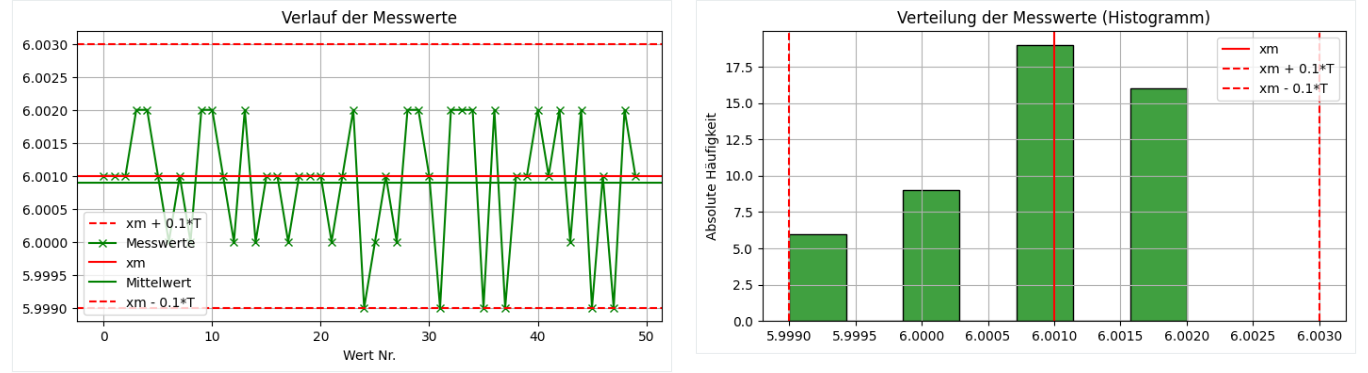
Tip: Click on a key value to get a detailed explanation and recommendations for action.
Saving an Analysis
You can save any analysis permanently to open it later or share it with others.
Saving
- Click the Save Analysis button.
- Enter a meaningful Name for the analysis.
- Optionally add Tags (keywords) to make the analysis easier to find later.
- Select the Visibility:
| Visibility | Description |
|---|---|
| Private | Only you can see and edit the analysis. |
| Team | All members of your team can view the analysis. |
| Organization | All members of your organization have access. |
- Click Save.
Info: When saving, all input data, settings, and calculated results are stored. When reopening, you will be in exactly the same state.
Important: Analyses with visibility "Team" or "Organization" can be viewed but not modified by other users — unless you explicitly grant edit rights.
Mark Analysis as Template (New as of 10.05.2026)
A saved analysis can be marked as a Template to use it as a template for new analyses. Template marking and visibility are independent of each other — you can control both separately.
Private Template:
- Set template flag, keep visibility on Private
- Only visible to you, serves as a personal template
- No other user can see or use the template
Organization Template (requires template_admin permission):
- Set template flag, then change visibility to Organization
- Appears for all organization members with the badge 📑 Template
- Other users can only copy the template — not open or modify it directly
How to mark an analysis as a template:
- Open the Dashboard or the Manage Saved Analyses modal.
- Click ⋮ (Three Dots) in the row of the analysis.
- Select Mark as Template.
- The template badge (📑) appears in the visibility column.
- To share the template with the organization: Click the ✏️-icon in the visibility column and select Organization.
Tip: Template marking and visibility are intentionally separate: You can finish the template first (test privately) and only release it to the organization later.
Loading & Managing Analyses
Opening Saved Analyses
- Click My Analyses in the sidebar or open the Dashboard.
- Search for the desired analysis using the Search Function or Tag Filters.
- Click on the analysis name to open it.
Full-Text Search
The full-text search searches all your saved analyses in real-time — not just by name, but also by content such as characteristic designations, machine numbers, and tags.
How to use full-text search:
- Open the Dashboard or click Load Analysis.
- Type a search term into the Full-Text Search field (magnifying glass icon).
- After a short pause, matching results appear directly in the list — without reloading the page.
- The number of found analyses is displayed below the search field.
- Click × to clear the search and view all analyses again.
What is searched?
| Field | Example |
|---|---|
| Analysis Name | "Shaft Line 3" |
| Tags | "First Sample", "Production Release" |
| Characteristic Designation | "Outer Diameter" |
| Input Parameters | Machine numbers, measuring instrument numbers |
Search Tips:
- Multiple words are automatically combined with AND:
Shaft Diameterfinds only analyses where both terms appear. - Phrase search with quotation marks:
"Shaft Diameter"searches for the exact word sequence. - The search is case-insensitive:
shaftalso findsShaft.
Tip: Combine full-text search with the type filter to find, for example, all MSA1 analyses for a specific machine.
Opening Saved Analyses (Modal in Analysis Tools) (New as of 10.05.2026)
Within an analysis tool (e.g., MSA1, PPK), you can access your saved analyses via the Manage Saved Analyses button. The modal displays a table with filter and search functions.
Action Symbols in the Modal:
| Symbol | Meaning |
|---|---|
| ↗ (Open Arrow) | Loads the analysis directly in the current tool. Disabled for Org Templates without ownership rights. |
| ⋮ (Three Dots) | Context menu with additional actions |
Actions in the ⋮ Menu (Modal):
| Action | Description | Availability |
|---|---|---|
| Copy as New Analysis | Opens a copy in the same tool under a new name | All Users |
| Mark as Template | Sets/removes template marking | Owner Only |
| Delete Analysis | Deletes permanently | Owner Only |
Name, tags, and visibility can be edited directly via the ✏️-icons in the respective column.
Managing Analyses
The following actions are available in the analysis management:
- Rename — Click the ✏️-icon next to the analysis name.
- Edit Tags — Add or remove keywords via the ✏️-icon in the Tags column.
- Change Visibility — Change access rights (Private, Team, Organization) via the ✏️-icon in the Visibility column.
- Copy — Create a copy of the analysis via ⋮ > Copy as New Analysis.
- Mark as Template — Mark an analysis as a template via ⋮ > Mark as Template (New as of 10.05.2026).
- Delete — Remove an analysis permanently via ⋮ > Delete Analysis (only for your own analyses).
Warning: Deleting an analysis cannot be undone. Make sure you no longer need the data or export the analysis beforehand.
Sharing an Analysis (Deep Link)
Each saved analysis has its own URL that you can share directly with other users:
Copy Link:
- Open the Dashboard with the analysis overview.
- Click the Link Icon (🔗) in the action column of the desired analysis.
- The deep link is copied to your clipboard (e.g.,
https://www.my8data.com/tools/ppk?analysis_id=143). - Send the link via email, chat, or another channel to the desired recipient.
Permissions:
The recipient can only open the analysis if they have the appropriate access rights:
| Visibility | Who can use the link? |
|---|---|
| Private | Only the creator themselves |
| Team | All members of the assigned team |
| Organization | All members of the organization |
Error Messages When Opening a Link:
| Situation | Message |
|---|---|
| Not logged in | Redirect to login page, then automatically to the analysis |
| Analysis not found | "This analysis does not exist or has been deleted." |
| No access | "You do not have access to this analysis." |
| Wrong analysis type in link | "This analysis is of type MSA1, but cannot be opened here (PPK)." |
Tip: For shared analyses (Team/Organization), the creator is displayed under the analysis name so you can see who the analysis is from.
Important: Shared analyses are read-only. If you want to make changes, save the analysis via Save as New Analysis as your own copy.
Export
my8data offers various export options for your analysis results.
Excel Export
- Click the Excel Export button.
- Select an Excel Template from the list of available templates. The templates are sorted by analysis type and language (e.g.,
M0460_MSA1_my8data_en.xlsx). - The Excel file is generated and automatically downloaded.
Info: The Excel templates contain predefined formatting and layouts that comply with common quality management standards. You can upload your own templates (PRO license).
Creating Custom Excel Templates
PRO customers can upload and use custom, freely designed Excel templates. This allows you to customize your reports exactly to your company's specifications — with your own logo, layout, and formatting.
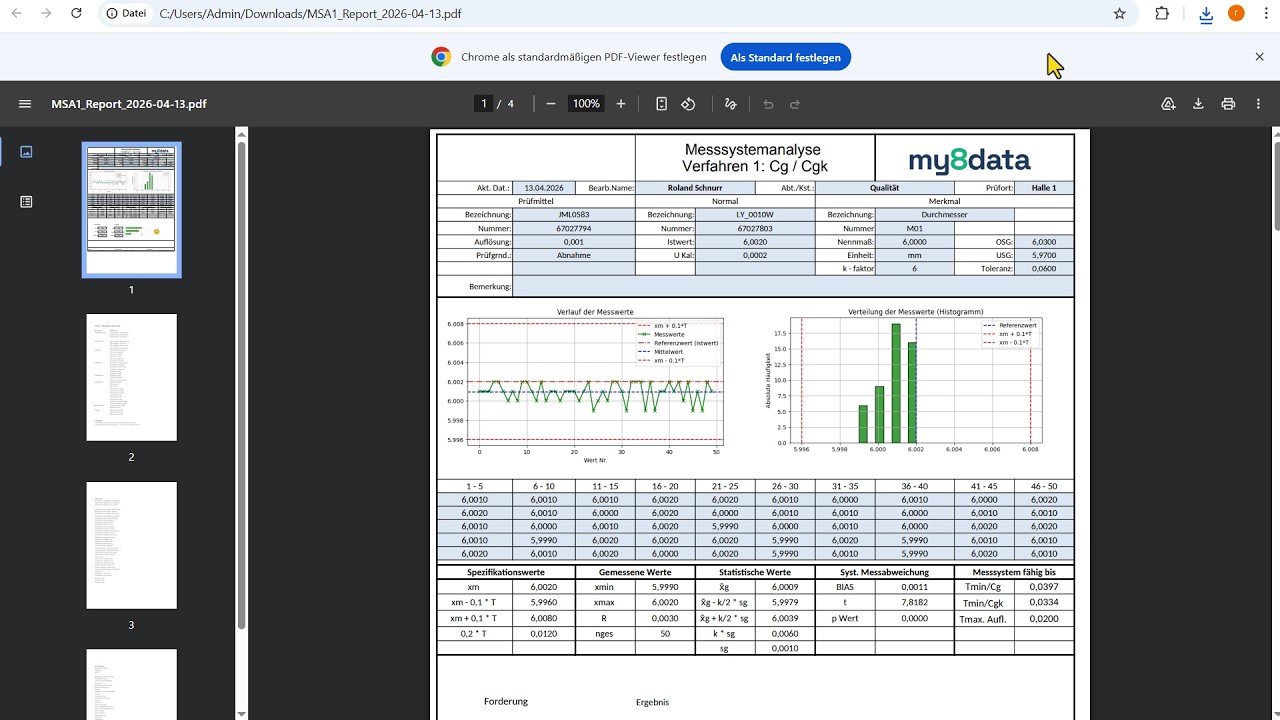
Video Tutorial: Create and upload custom Excel templates
The template management can be found under Settings > Excel Templates. There you can:
- Upload new templates in
.xlsxformat - Assign templates to an organization or only yourself
- Add tags to make templates easier to find
- Download existing templates and use them as a basis
Tip: Download an existing standard template and customize it to your needs. This ensures all placeholders are set correctly.
PDF Export
- Click the PDF Export button.
- Select the desired content (key values, charts, raw data).
- The PDF report is generated and made available for download.
Tip: PDF export is particularly suitable for documentation and archiving. The layout is optimized for DIN A4 printing.
Local Data
In addition to server-side saving, you can back up analysis data locally on your computer.
JSON Export
- Click Local Data > Export.
- A JSON file with all input data and settings is downloaded.
- Save the file in a secure location.
JSON Import
- Click Local Data > Import.
- Select a previously exported JSON file.
- The input data and settings are automatically loaded into the form.
Tip: JSON export/import is useful for transferring analyses between different my8data instances or creating local backups of your data.
Info: The JSON file contains only the input data and settings, not the calculated results. After import, you must run the calculation again.
Analysis-Specific Settings
Each analysis module offers individual configuration options that you can adjust before or after calculation.
Decimal Places
Specify how many decimal places should be displayed for results:
- Default: 4 decimal places
- Adjustable from 0 to 8 decimal places
- The setting applies to all key values and tables in the current analysis.
Chart Settings (Off-Canvas Panel) (New as of 10.05.2026)
Via the Chart button (icon: sliders ⊟) in the navigation bar of the analysis tool, an off-canvas side panel opens that offers comprehensive customization options for all charts.
How to open chart settings:
- Click ⊟ Chart (sliders icon) in the toolbar.
- The panel opens from the right.
- Make your adjustments — all charts update immediately.
- Close the panel via × or by clicking outside it.
Available Tabs in the Settings Panel:
| Tab | Content |
|---|---|
| Sizes | Adjust the width and height of individual charts |
| General | Font size, theme (light/dark), borders, legend, gridlines |
| Sample | Settings for the sample/run chart |
| Histogram | Number of classes, colors, limit curves |
| Q-Q Plot | Display options for the normality test |
Tip: All chart settings (sizes, colors, font sizes, theme, gridlines, etc.) are saved when you save the analysis. When reopening, the charts look exactly as they did when saved — even for shared analyses.
Info: Not all tabs are available in every analysis module — only relevant settings for each type are displayed.
Chart Sizes
You can adjust the size of the displayed charts:
- Small — Compact display, multiple charts side by side.
- Medium — Standard size (recommended).
- Large — Large-format display for presentations.
Sizes can now also be set individually per chart via the Sizes tab in the chart settings panel (New as of 10.05.2026).
Export Templates
Select the desired export template for Excel and PDF exports:
- Templates are organized by language and analysis type.
- PRO customers can upload their own company-specific templates.
Tip: Adjust the settings before export so that the exported reports meet your requirements. The settings are saved with the analysis.